
Uniapp
UI组件库
- 推荐,组件功能比较齐全 wot-ui
- uView Next
- vue3+ts uviewpro
- vue2 uviewui
- tuniao-ui
- tuniao-ui 第三方组件
微信小程序自定义 tabbar
pages.json文件配置 tabBar,"custom": true,list 字段也需要配置,这样可以使用 uni.switchTab 来切换 tabbar 路由,并且在切换 tabbar 时不闪烁(每个 tabbar 第一次加载时会闪一下,加载后,在进到该 tabbar 不会再次加载,也就不会闪)
"tabBar": {
    "color": "#7A7E83",
    "selectedColor": "#399d9e",
    "borderStyle": "black",
    "backgroundColor": "#ffffff",
    "custom": false,
    "list": [
      {
        "pagePath": "pages/home/home",
        "text": "首页",
        "iconPath": "static/tabBar/home_off.png",
        "selectedIconPath": "static/tabBar/home_on.png"
      },
      {
        "pagePath": "pages/scheduling/scheduling",
        "text": "排班",
        "iconPath": "static/tabBar/scheduling_off.png",
        "selectedIconPath": "static/tabBar/scheduling_on.png"
      },
      {
        "pagePath": "pages/report/report",
        "text": "报表",
        "iconPath": "static/tabBar/report_off.png",
        "selectedIconPath": "static/tabBar/report_on.png"
      },
      {
        "pagePath": "pages/waitdo/waitdo",
        "text": "待办",
        "iconPath": "static/tabBar/waitdo_off.png",
        "selectedIconPath": "static/tabBar/waitdo_on.png"
      },
      {
        "pagePath": "pages/mine/mine",
        "text": "我的",
        "iconPath": "static/tabBar/mine_off.png",
        "selectedIconPath": "static/tabBar/mine_on.png"
      },
      {
        "pagePath": "pages/layout/layout",
        "text": "layout",
        "iconPath": "static/tabBar/mine_off.png",
        "selectedIconPath": "static/tabBar/mine_on.png"
      }
    ]
  }
注意
uni.reLaunch 可以跳转到 tabbar 页面
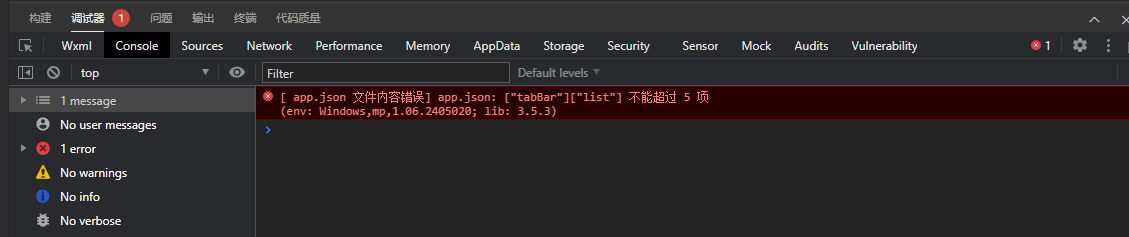
"custom": true,list 的 item 可以配置超过5个,并且在微信开发者工具中也不会报错"custom": false,list 的 item 配置不可超过5个,微信开发者工具会报错:[ app.json 文件内容错误] app.json: ["tabBar"]["list"] 不能超过 5 项(env: Windows,mp,1.06.2405020; lib: 3.5.3)
- 开发 tabbar 组件,
components/tabbar
<template>
  <view class="rtc-tabbar">
    <view
      class="tabbar-item"
      v-for="item in tablist"
      :key="item.name"
      @click.stop="onClick(item)"
    >
      <image
        class="tab-icon"
        :src="isActive(item) ? item.selectedIconPath : item.iconPath"
        mode="scaleToFill"
      />
      <view :class="['label', { 'is-active': isActive(item) }]">
        {{ item.text }}
      </view>
    </view>
  </view>
</template>

<script setup lang="ts">
import { computed, ref, watch } from "vue";

interface Props {
  value: string;
}
const props = withDefaults(defineProps<Props>(), {
  value: "",
});

type TabItem = {
  pagePath: string;
  name: string;
  text: string;
  iconPath: string;
  selectedIconPath: string;
};

const activeTab = ref<string>();
watch(
  () => props.value,
  (nv) => {
    activeTab.value = nv;
  },
  {
    immediate: true,
  }
);
const isActive = computed(() => {
  return (item: TabItem) => {
    return activeTab.value === item.name;
  };
});
const tablist = ref<TabItem[]>([
  {
    name: "home",
    pagePath: "/pages/home/home",
    text: "首页",
    iconPath: "../../static/tabBar/home_off.png",
    selectedIconPath: "../../static/tabBar/home_on.png",
  },
  {
    name: "scheduling",
    pagePath: "/pages/scheduling/scheduling",
    text: "排班",
    iconPath: "../../static/tabBar/scheduling_off.png",
    selectedIconPath: "../../static/tabBar/scheduling_on.png",
  },
  // {
  //   name: "report",
  //   pagePath: "/pages/report/report",
  //   text: "报表",
  //   iconPath: "../../static/tabBar/report_off.png",
  //   selectedIconPath: "../../static/tabBar/report_on.png",
  // },
  // {
  //   name: "waitdo",
  //   pagePath: "/pages/waitdo/waitdo",
  //   text: "待办",
  //   iconPath: "../../static/tabBar/waitdo_off.png",
  //   selectedIconPath: "../../static/tabBar/waitdo_on.png",
  // },
  {
    name: "mine",
    pagePath: "/pages/mine/mine",
    text: "我的",
    iconPath: "../../static/tabBar/mine_off.png",
    selectedIconPath: "../../static/tabBar/mine_on.png",
  },
  // {
  //   name: "layout",
  //   pagePath: "/pages/layout/layout",
  //   text: "layout",
  //   iconPath: "../../static/tabBar/home_off.png",
  //   selectedIconPath: "../../static/tabBar/home_on.png",
  // },
]);

const onClick = (item: TabItem) => {
  if (activeTab.value === item.name) return;
  uni.switchTab({
    url: item.pagePath,
  });
};
</script>

<style scoped lang="scss">
.rtc-tabbar {
  height: calc(100rpx + env(safe-area-inset-bottom));
  background-color: #fff;
  border-top: 1rpx solid #e5e5e5;
  position: fixed;
  bottom: 0;
  left: 0;
  right: 0;
  z-index: 10;
  display: none;
  padding-bottom: env(safe-area-inset-bottom);

  .tabbar-item {
    flex: 1;
    display: flex;
    flex-direction: column;
    justify-content: center;
    align-items: center;
    .tab-icon {
      width: 44rpx;
      height: 46rpx;
    }
    .label {
      display: flex;
      justify-content: center;
      font-size: $rt-font-size-md;
      color: #7a7e83;
      &.is-active {
        color: $rt-primary;
      }
    }
  }
}
</style>
- 在 tabbar 页面分别导入
<template>
  <layout-page>
    <view class="rt-home page">
    </view>
  </layout-page>
  <tabbar value="home" />
</template>

<script setup lang="ts">
import tabbar from "@/components/tabbar/tabbar.vue";
</script>
</style>
custom: true下, tabBar.list < 5

custom: true下, tabBar.list > 5

注意
- 我采用的方案是自定义 tabbar,但是并没有使用微信小程序官方的做法=》使用
custom-tab-bar,因此在微信开发者工具下,会有警告:[代码依赖分析] 找到 1 个依赖异常情况,可能会导致对应文件无法加载,请检查。 Couldn't resolve the Component "custom-tab-bar/index" relative to "/app.json" 如需关闭依赖分析请在 project.config.json setting 字段中增加 "ignoreDevUnusedFiles": false 和 "ignoreUploadUnusedFiles": false
消除警告有两种方式:
- project.config.json setting 字段中增加 "ignoreDevUnusedFiles": false 和 "ignoreUploadUnusedFiles": false
- 在 src 目录下新增 custom-tab-bar:
index.js,index.json,index.wxml,index.wxss;
我采用第 2 种方式,因为警告在开发环境还是打开好,方便发现潜在问题
- 我的做法和微信官网不同,因为我已经自己封装了 tabbar 组件,不需要使用 custom-tab-bar 来自定义 tabbar,所以使用 custom-tab-bar 只是为了消除警告:
Couldn't resolve the Component "custom-tab-bar/index" relative to "/app.json"
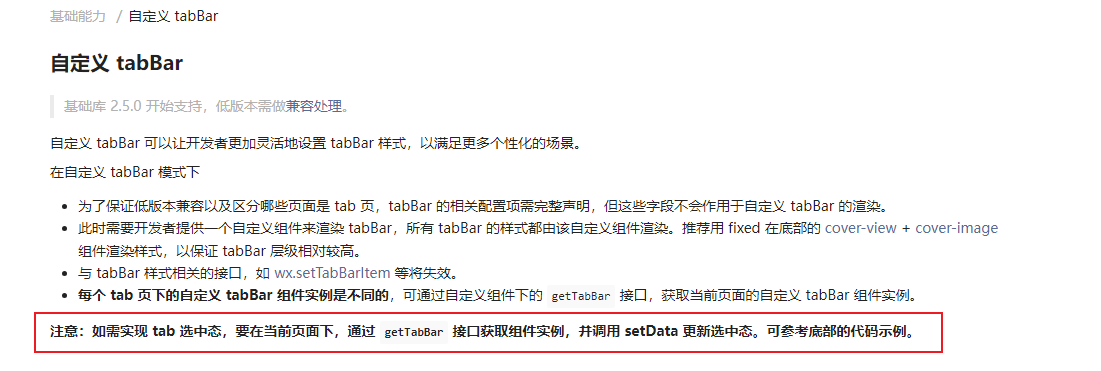
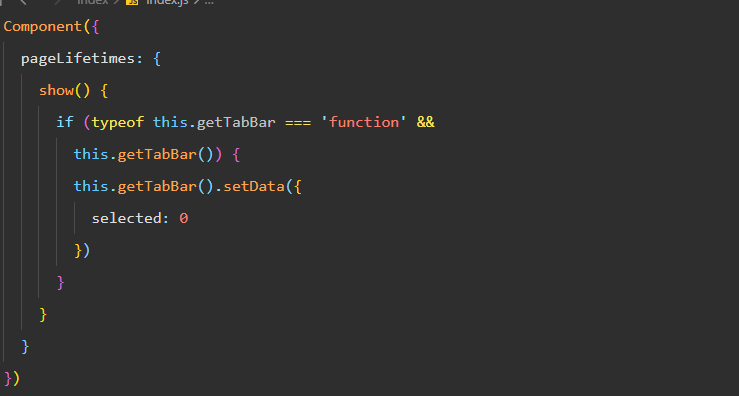
我的 custom-tab-bar
- index.js,必须要有,不能为空文件
Component({});
- index.json,必须要有,不能为空文件
{
  "component": true
}
- index.wxml,必须要有,可以什么都不写
<!--miniprogram/custom-tab-bar/index.wxml-->
- index.wxss 非必须
主包使用子包组件
主包子组件使用子包组件,把主包子组件配置成页面(因为 uniapp 写的是 vue 组件,所以无法在子组件配置 json),配置 style 的 componentPlaceholder 和 usingComponents
- componentPlaceholder 配置加载子包组件过程的占位组件
"pages": [
    {
      "path": "components/report/department/sea",
      "style": {
        "componentPlaceholder": {
          "qiun-data-charts": "view"
        },
        "usingComponents": {
          "qiun-data-charts": "/sub-components/qiun-data-charts/qiun-data-charts"
        }
      }
    },
    {
      "path": "components/report/personal/performance",
      "style": {
        "componentPlaceholder": {
          "qiun-data-charts": "view"
        },
        "usingComponents": {
          "qiun-data-charts": "/sub-components/qiun-data-charts/qiun-data-charts"
        }
      }
    }
]
- 导入子包组件并使用
<template>
  <view>
    <qiun-data-charts
      type="ring"
      :opts="opts"
      :chartData="chartData"
      :canvas2d="canvas2d"
      canvasId="stack"
    />
  </view>
</template>

<script setup lang="ts">
import qiunDataCharts from "@/sub-components/qiun-data-charts/qiun-data-charts.vue";

const { platform } = uni.getSystemInfoSync();
const canvas2d = ref(platform === "devtools" ? false : true);

const chartData = ref({});

const opts = reactive({
  duration: CHARTS_DURATION,
  color: ["#449EFD", "#01C883"],
  fontSize: 11,

  xAxis: {
    disableGrid: true,
    rotateLabel: true,
    rotateAngle: 20,
    fontSize: 11,
  },
  dataLabel: false,
  legend: {
    show: true,
    position: "top",
    containLabel: true,
    // lineHeight: 25,
  },
  padding: [15, 15, 15, 5],
  yAxis: {
    data: [
      {
        min: 0,
      },
    ],
  },
  extra: {
    column: {
      type: "group",
      width: 16,
      seriesGap: 5,
    },
  },
});
</script>
主包使用子包 js 文件
子包静态资源
- 目录结构
将子包专用的图片资源放在子包目录下的static文件夹中,而不是根目录的static。例如,假设你有一个子包名为pagesA,那么目录结构应该如下:
├── pages.json
├── static                 # 主包的静态资源
│   └── main-bg.png
└── pagesA                 # 子包A
    ├── pages
    │   └── index.vue
    └── static             # 子包A的静态资源
        └── sub-bg.png
- 配置分包
在pages.json中配置分包,确保子包的root指向正确的目录。例如:
{
  "pages": [
    // 主包页面
  ],
  "subPackages": [
    {
      "root": "pagesA",
      "pages": [
        // 子包A的页面
      ]
    }
  ]
}
- 开启分包优化
在manifest.json中对应平台的配置下开启分包优化,以微信小程序为例:
"mp-weixin": {
  "optimization": {
    "subPackages": true
  }
}
开启分包优化后,构建时会将子包下的静态资源(如图片)打包到子包中,而不是主包
- 引用子包图片
在子包的页面中引用图片时,使用相对路径或者以子包根目录为基准的绝对路径。例如在pagesA子包的页面中:
<template>
  <image src="./static/sub-bg.png"></image>
  <!-- 或者 -->
  <image src="/pagesA/static/sub-bg.png"></image>
</template>
重要注意事项
资源隔离:放置在子包 static 目录下的图片,主包和其他子包无法直接引用。请确保图片只被其所在的子包使用。
主包体积:所有子包共用的图片,仍然可以放在主包的 static 目录下。但请注意,这会增加主包的体积。
图片优化:如果项目体积仍然很大,可以考虑将一些不常变动的大图托管到服务器上,使用网络地址进行引用,这是控制包体积最有效的方法之一。
检查分包结果:上传或预览小程序时,务必使用开发者工具(如微信开发者工具)的“代码依赖分析”功能,查看主包和各个子包的具体大小,确认图片资源是否已按预期正确分配
目录结构
├── pages                # 主包页面目录
├── static               # 主包静态资源
├── subPackageA          # 子包A根目录
│   ├── pages            # 子包A页面
│   └── static           # ➕ 子包A的专属图片资源
│       └── icon.png
└── subPackageB          # 子包B根目录
    ├── pages
    └── static           # ➕ 子包B的专属图片资源
        └── avatar.jpg
总结
总的来说,让子包图片独立打包的关键操作就是:在子包目录下建立 static 文件夹存放专属图片,并在 manifest.json 中开启分包优化。这样做可以有效减轻主包的压力,优化小程序的启动速度。